
123 Polls & Surveys
Ask a question in your Teams meeting and see everyone’s answers live. Run quick polls, quizzes, word clouds and multi-question surveys, and share them in the meeting chat, on the meeting screen, or by link and QR code. Free to start.
How to install 123 Polls & Surveys in Microsoft Teams
1. In Teams, click Apps and search for 123 Polls & Surveys, or open it in Teams from here.Add 123 Polls & Surveys to Teams
2. In a scheduled Teams meeting, click + next to the tabs at the top, search for 123 Polls & Surveys, click Add, then Save. For a quick poll in a group chat or channel, click Actions and apps under the message box instead.
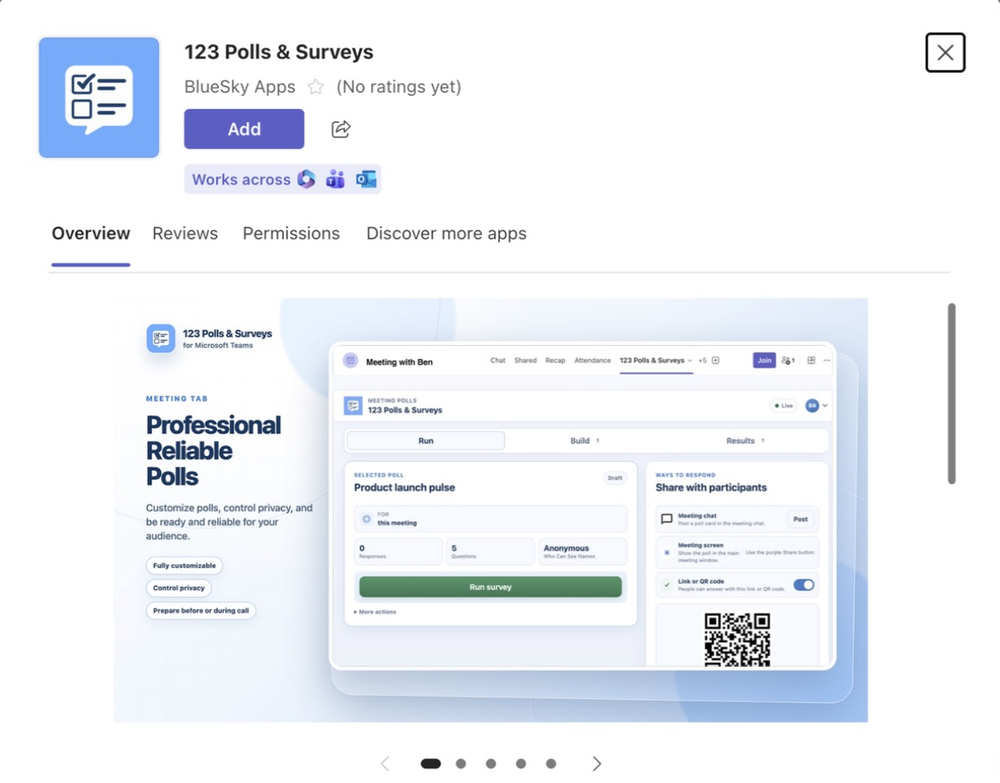
🔒 BlueSky Apps are built with security as a top priority.
To uninstall 123 Polls & Surveys in Teams:
1. Click Apps in the Teams sidebar, then Manage your apps.
2. Select 123 Polls & Surveys.
3. Click Remove.
How does 123 Polls & Surveys work?
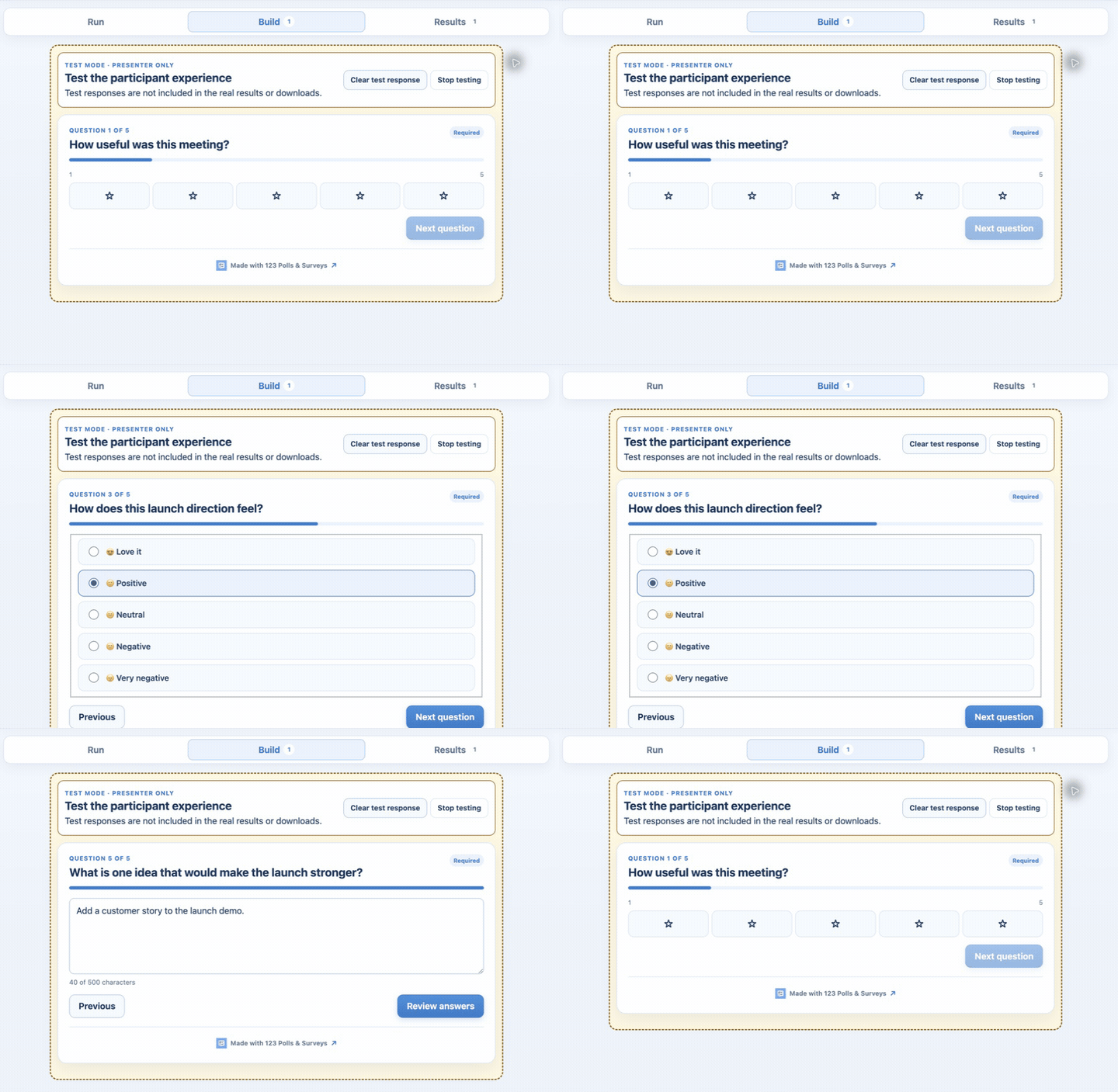
1. Create a poll
Start a Quick poll with one question, Create from scratch, or pick a template. Choose from eleven question types, including multiple choice, quiz, word cloud, rating, ranking and idea board. Your changes save as you go.
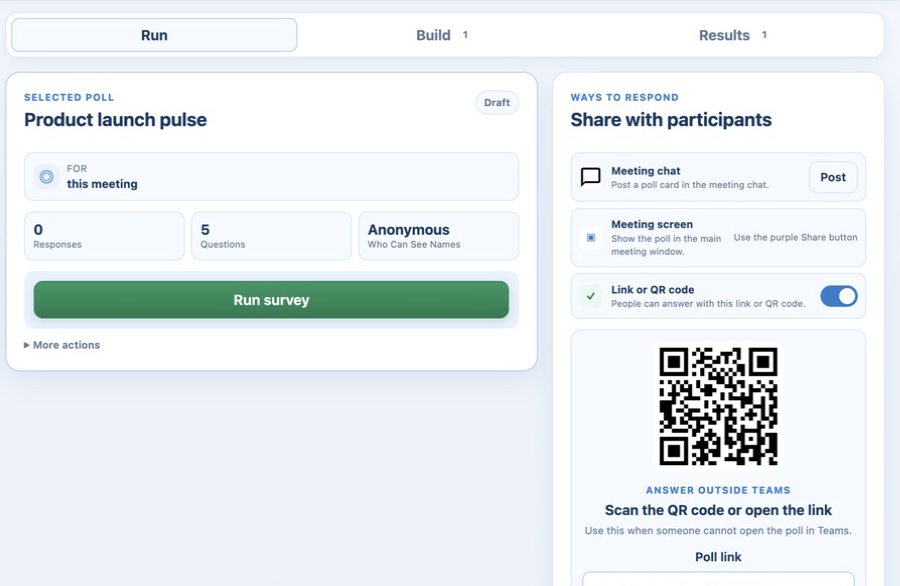
2. Run it and share it
Post the poll to the meeting chat, put it on the meeting screen, or turn on a link and QR code for people outside Teams. Answers appear as they come in, and you decide whether names are hidden, visible to presenters, or visible to everyone.
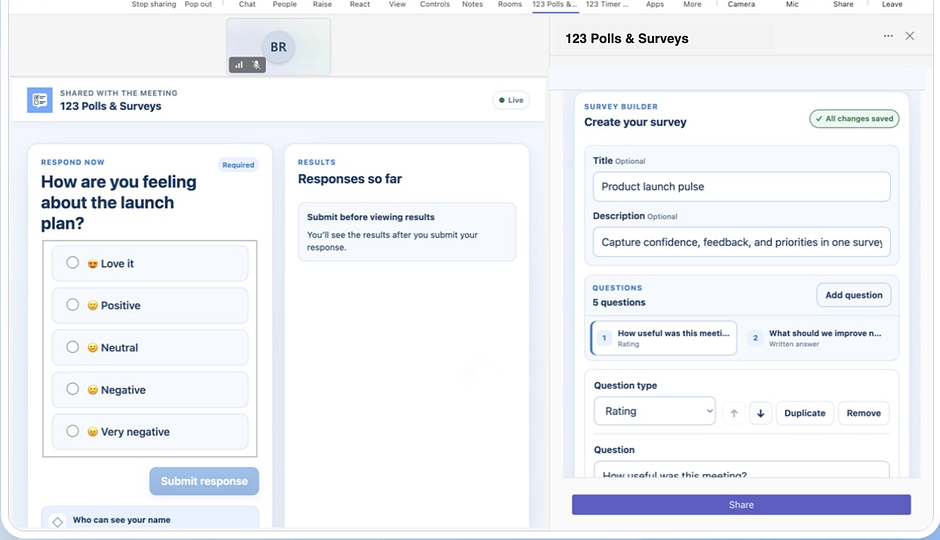
3. Ask more in one survey
Put several questions in one survey and preview it as a participant before you run it. Afterwards, download the results as CSV, Excel or an image from Poll history.
 BlueSky Apps